ICAO guide
Photo is not valid as per ICAO standard? Here's how to fix it
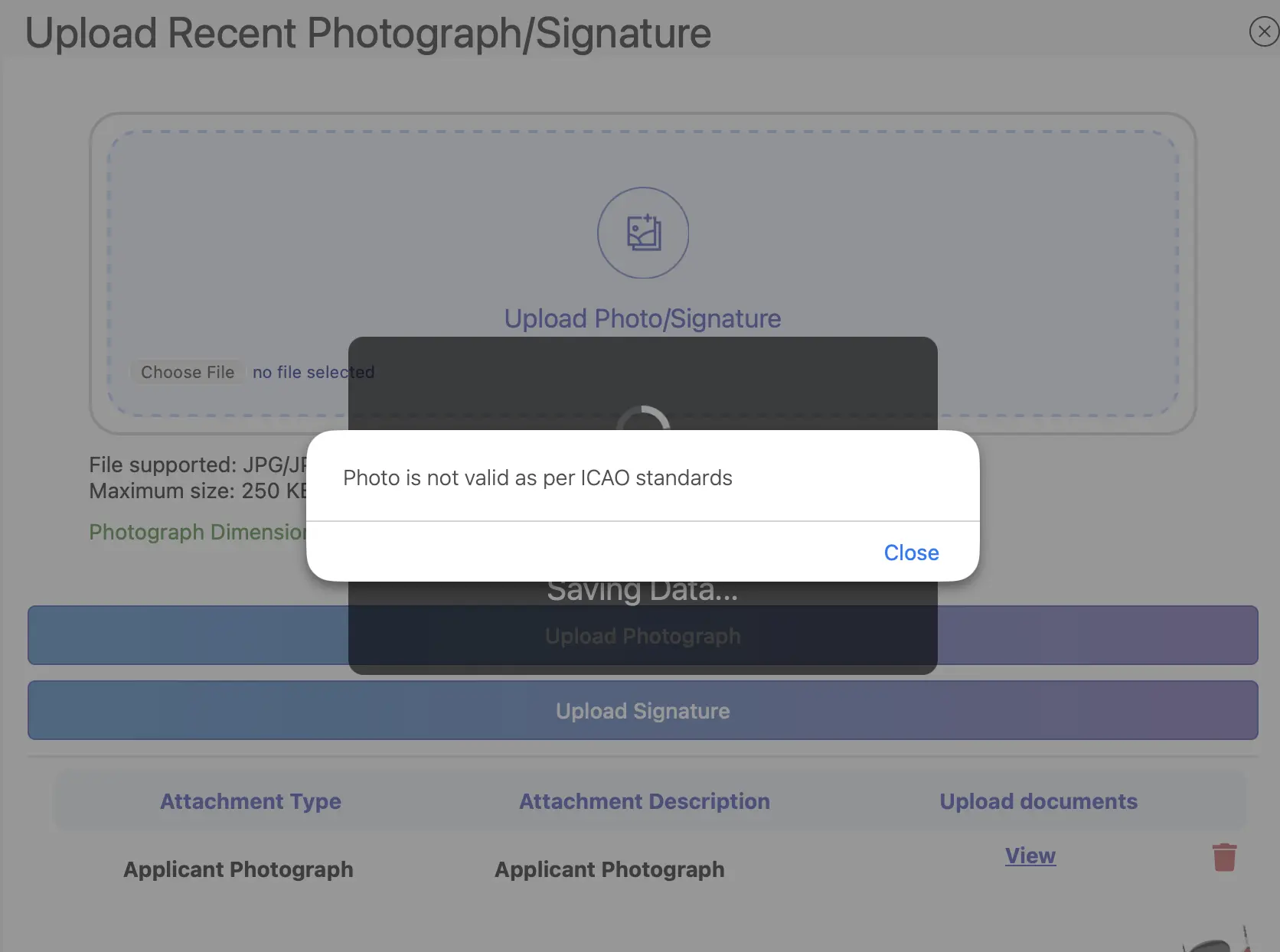
This error appears when a passport or visa portal's automated check finds that your photo breaks one of the ICAO 9303 rules. Here are the most common reasons and how to fix each one.
The short answer
Your photo failed at least one check for background, lighting, head size, pose, expression, image quality or file format. Find the issue below, fix it (usually by retaking or re-cropping the photo) and upload a new file.
What the error looks like
On the Passport Seva portal the message appears as a pop-up right after you upload your photograph. The upload is not saved, so you need to fix the photo and upload it again.
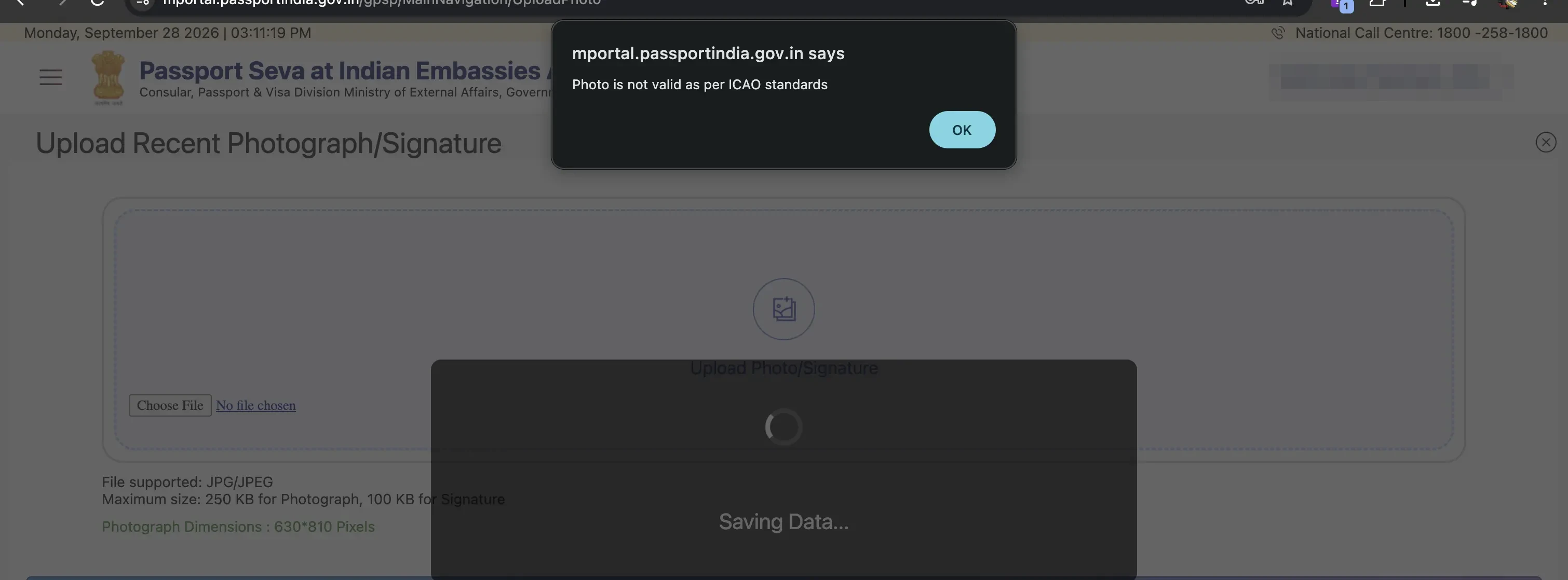
Photo requirements listed on the upload page
A photo that meets these file limits can still be rejected if the face, background or lighting breaks an ICAO rule.
- File type
- JPG / JPEG
- Maximum size
- 250 KB
- Dimensions
- 630 × 810 px
Common reasons your photo is rejected
Background is not plain or light
Patterned walls, visible objects, colour casts or a grey-blue tint behind you.
Stand in front of a plain white or light grey wall, or use a tool that replaces the background with pure white.
Shadows on the face or background
Overhead lights or a single side lamp create shadows under the eyes, nose or behind the head.
Face a window for soft, even daylight and stand about 50 cm away from the wall.
Head size or position is wrong
The face is too small, too large, off-centre or cropped at the chin or crown.
On a 35×45 mm photo the head should be 32–36 mm tall from chin to crown, centred, with a little space above the hair.
Head tilted or not facing the camera
A slight tilt, turned shoulders or looking off to one side.
Look straight into the lens with your head level and shoulders square. Keep the camera at eye level.
Expression or eyes
Smiling with teeth, raised eyebrows, mouth open, eyes half-closed or hidden by hair.
Keep a neutral expression with your mouth closed and both eyes fully open and visible.
Glasses, glare or head coverings
Reflections on lenses, tinted glasses, thick frames over the eyes or hats.
Remove glasses if you can. Head coverings are only allowed for religious or medical reasons, and must not cover the face.
Blurry, edited or low quality
Motion blur, heavy compression, beauty filters, red-eye or a photo of a printed photo.
Use a sharp, unfiltered photo from a phone's main camera. Never apply beauty effects or edit your features.
Wrong file size, format or dimensions
The upload is too large, too small, not a JPEG or has the wrong pixel size or aspect ratio for that portal.
Check the portal's stated limits and export the photo to match them exactly before uploading.
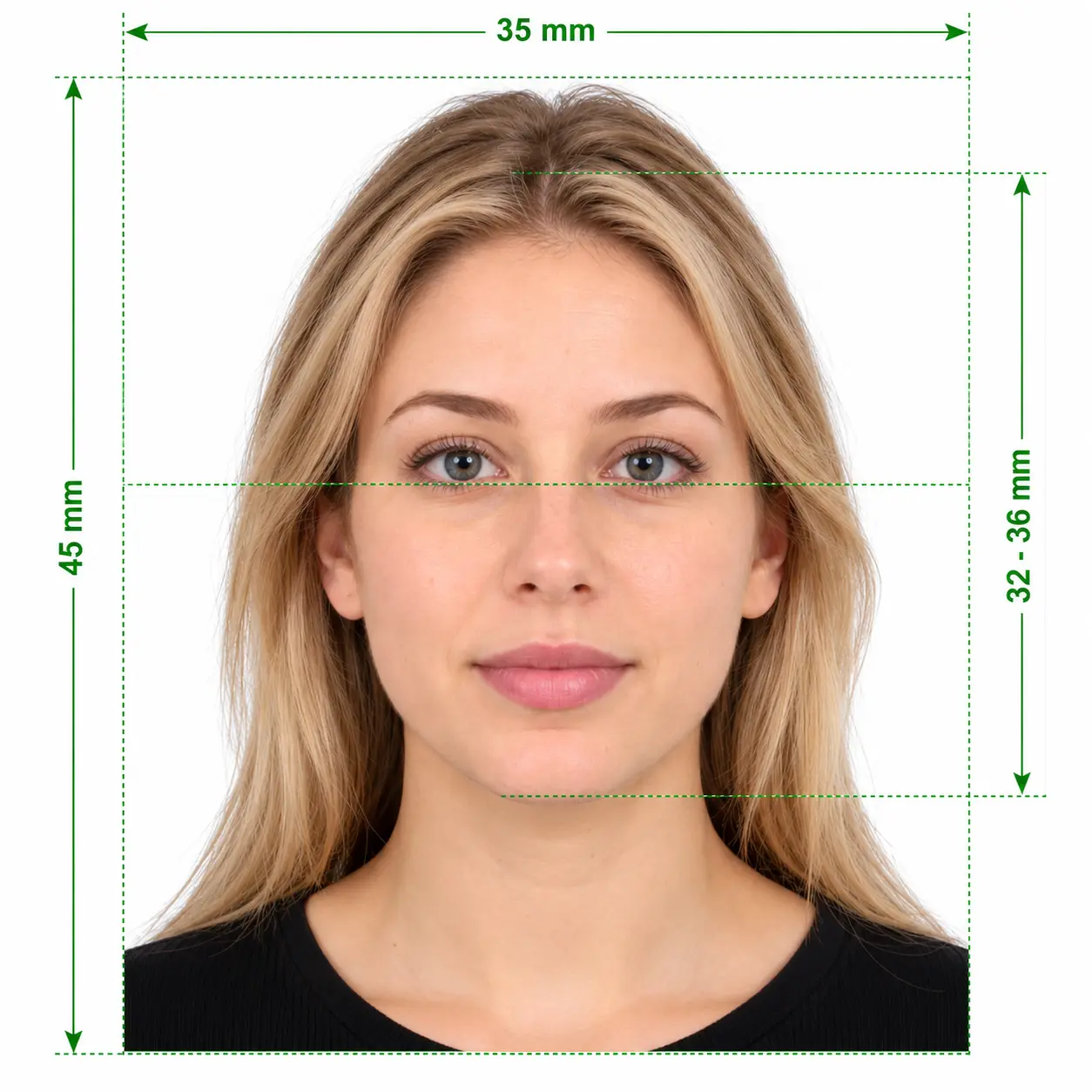
What an ICAO compliant photo looks like
- 35 × 45 mm with the head 32–36 mm from chin to crown
- Plain white background with no shadows
- Face centred, eyes level and looking at the camera
- Neutral expression, mouth closed, eyes open
- Sharp, evenly lit and free of filters
How to fix a rejected photo
- 1
Read the rejection message carefully. Some portals name the exact check that failed.
- 2
Compare your photo against the list above and find every issue, not just the first one.
- 3
Retake the photo if lighting, expression or pose is the problem. Editing rarely fixes these.
- 4
Crop and resize to the size required by your document, then export as a JPEG within the portal's file size limit.
- 5
Upload again. If the portal still rejects it, try a different photo rather than re-uploading the same file.
Frequently asked questions
- What does “photo is not valid as per ICAO standard” mean?
- It means the passport or visa portal ran an automated check and found that your photo doesn't meet ICAO Doc 9303, the international standard for travel document photos. Common causes are a non-white background, shadows, the wrong head size or a tilted head.
- Can I upload the same photo again?
- Re-uploading the same file almost always gives the same result. Fix the issue first, then upload the corrected photo.
- Is a photo from a studio always ICAO compliant?
- Not always. Studio photos can still fail because of cropping, file size or a background that isn't plain enough. Check the final digital file before you upload it.
- Can I fix a rejected photo without retaking it?
- Background, crop, size and file format issues can usually be fixed from the same photo. Problems with pose, expression, lighting, glare or blur need a new photo.
- How can I make sure my photo passes next time?
- Use a tool that checks your photo against ICAO rules before you download it. Our service costs ₹199 in India ($7.99 elsewhere), checks head size, background, lighting and pose, and refunds you if a government agency rejects the photo within 3 days of purchase.
Get a photo that passes the first time
Upload a selfie and we check it against ICAO rules before you download.